


With phone searches at US borders hitting unprecedented levels—nearly 15,000 devices searched between April and June alone—concerns about privacy while traveling have escalated. The increased scrutiny can include incidents where travelers are denied entry for content on their devices, making it essential for those crossing the border to take protective measures for their sensitive information.
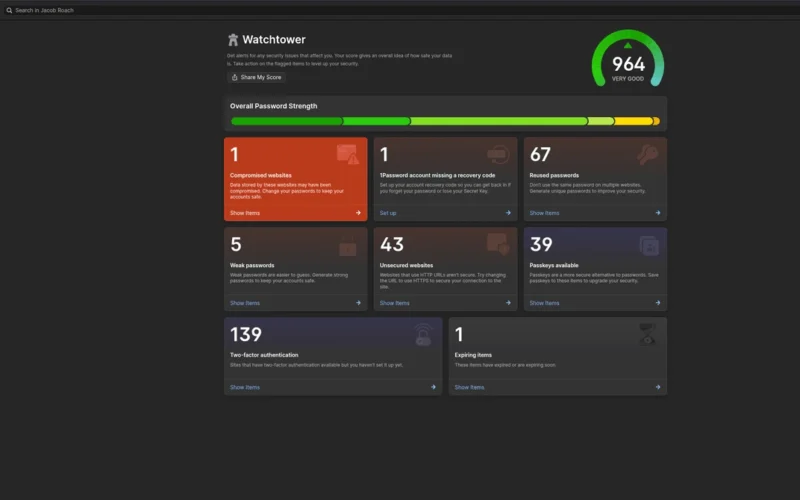
1Password’s Travel Mode is designed to assist in safeguarding your data. This password manager allows you to organize your sensitive information into vaults, designating which vaults to keep hidden while traveling. Once Travel Mode is activated, selected vaults are not just hidden; 1Password claims they are erased from your device, effectively making it seem as if they never existed.
Customs and Border Protection (CBP) has broad authority to search electronic devices, but cannot deny entry to US citizens or green card holders unless they refuse to comply. However, non-compliance can lead to significant consequences, such as increased scrutiny or even device seizures. Therefore, implementing precautionary measures like 1Password’s Travel Mode can mitigate the risk of border agents accessing sensitive data.
Here’s how to utilize Travel Mode effectively:
-
Mark Vaults: Prioritize which vaults are safe for travel so that you don’t lose access to essential information. You can adjust vault settings on my.1password.com.
-
Emergency Kit: Prepare your emergency kit, which includes your secret key, login email, and a space for your master password. This is crucial for regaining access if you lose your device.
-
Organize: Create multiple vaults for different types of information. This allows for easier management when toggling Travel Mode.
To activate Travel Mode, log into your account on a browser, go to Manage Account, and toggle on Travel Mode under More Actions. It’s instantaneous, removing the selected vaults from access.
However, it’s important to note that while Travel Mode protects data on your phone, laptops don’t have a comparable feature. Although CBP cannot disable Travel Mode on a laptop, it still poses a security risk. For laptops, consider using encryption tools like BitLocker or FileVault.
Finally, digital housekeeping is vital: remove unnecessary data, messages, and apps that could be sensitive. The principle of data minimization suggests only taking essential information across borders, helping safeguard privacy and maintain peace of mind during your travels.